Empowering Informed Shopping Decisions
SmartDeals was created to help you save money in an era of rapidly increasing costs. We provide price history and comparison tools that major retailers typically do not offer—because informed shoppers make better decisions.
💡 Why Price History Matters
While retailers show current prices, historical price data is not typically provided in their apps. SmartDeals tracks price changes over time, helping you identify the best time to purchase. We also provide similar product comparisons with Coles, giving you more options to find great value.
Product Catalog
Browse & Discover Products
The product catalog is your gateway to thousands of Woolworths products. Here's how to make the most of it:
Navigation Features
- Real-Time Search: Search across all products instantly using our remote database
- Sort Options: Order by price (high/low) or name (A-Z)
- Smart Results: Get the most relevant matches with intelligent ranking
- Discounted Filter: Toggle between all products and currently discounted items
- No Categories Needed: Search across all products without category limitations
Product Information
- Current Price: Real-time pricing information
- Previous Price: Shows if there was a recent price change
- Product Images: Visual identification of products (can be toggled in Settings)
- Price History: List view always available; chart view requires 2+ data points
- Price Prediction: Premium users see estimated next price drop based on historical trends
💡 Quick Tip
Use the search feature with partial names. For example, searching "pasta" will show all pasta products, making it easy to compare prices across brands. Results are displayed in batches of 50—scroll to the bottom to automatically load more results.
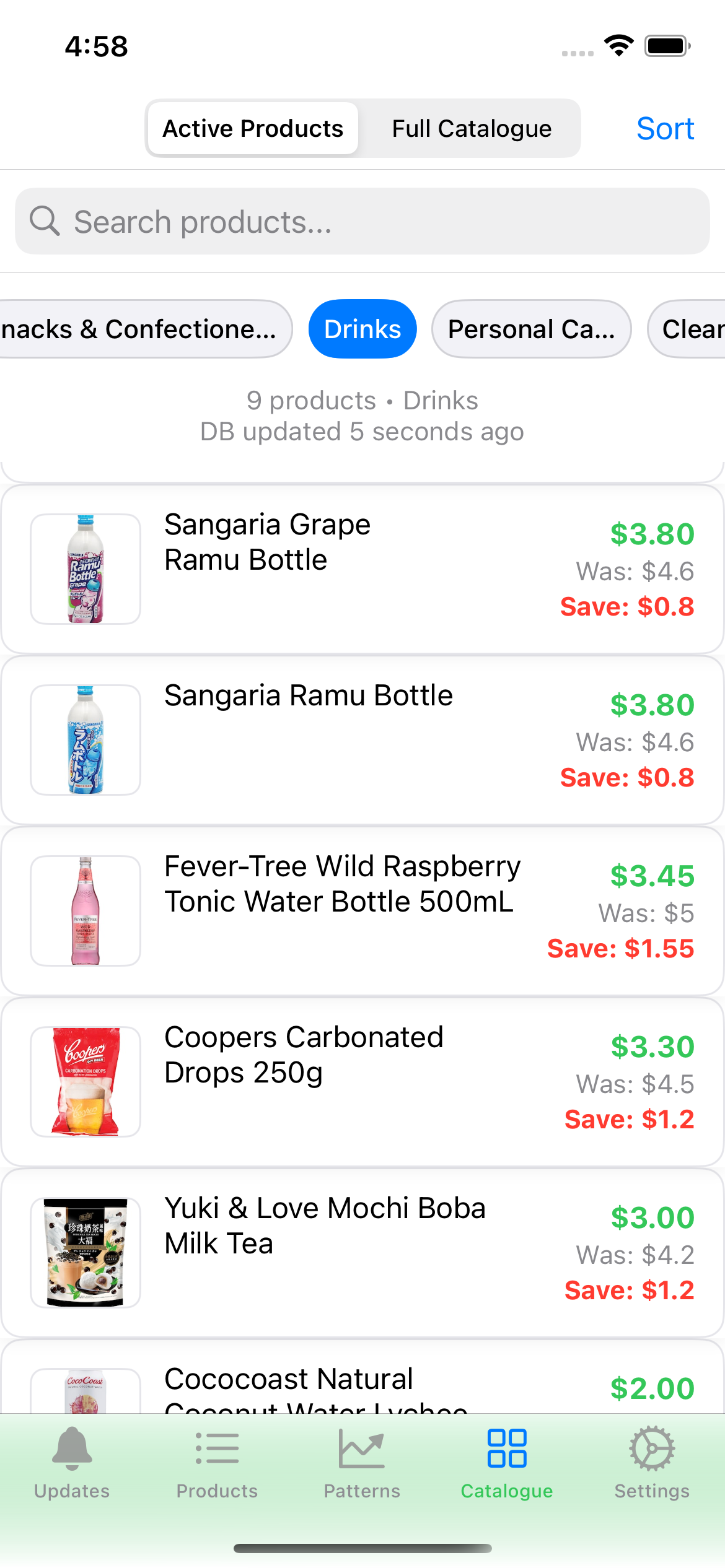
Browse and filter products in the catalog
Product Details
Deep Dive into Product Information
Tap any product to access detailed information and tracking options:
What You'll See
- Full Product Name: Complete product description
- Large Product Image: High-quality product photo
- Price Information: Current price and any recent changes
- Savings Calculation: Dollar amount and percentage saved (if discounted)
- Product URL: Direct link to the product on Woolworths website
- Last Updated: When the price was last checked
- Price History: List view (always available) or chart view (requires 2+ data points)
- Price Prediction: Premium users see estimated next price drop timing
Actions You Can Take
- Add to Watchlist: Track this specific product
- View Price History: See historical price trends (Free tier: last 3 changes, Premium: complete history)
- Find Similar Products: Discover related items from Coles for price comparison
ℹ️ Price Changes
When a product's price changes, you'll see both the old and new prices with clear indicators showing whether it's a price increase (red) or decrease (green). Note: Only price drops trigger notifications—price increases are not notified.
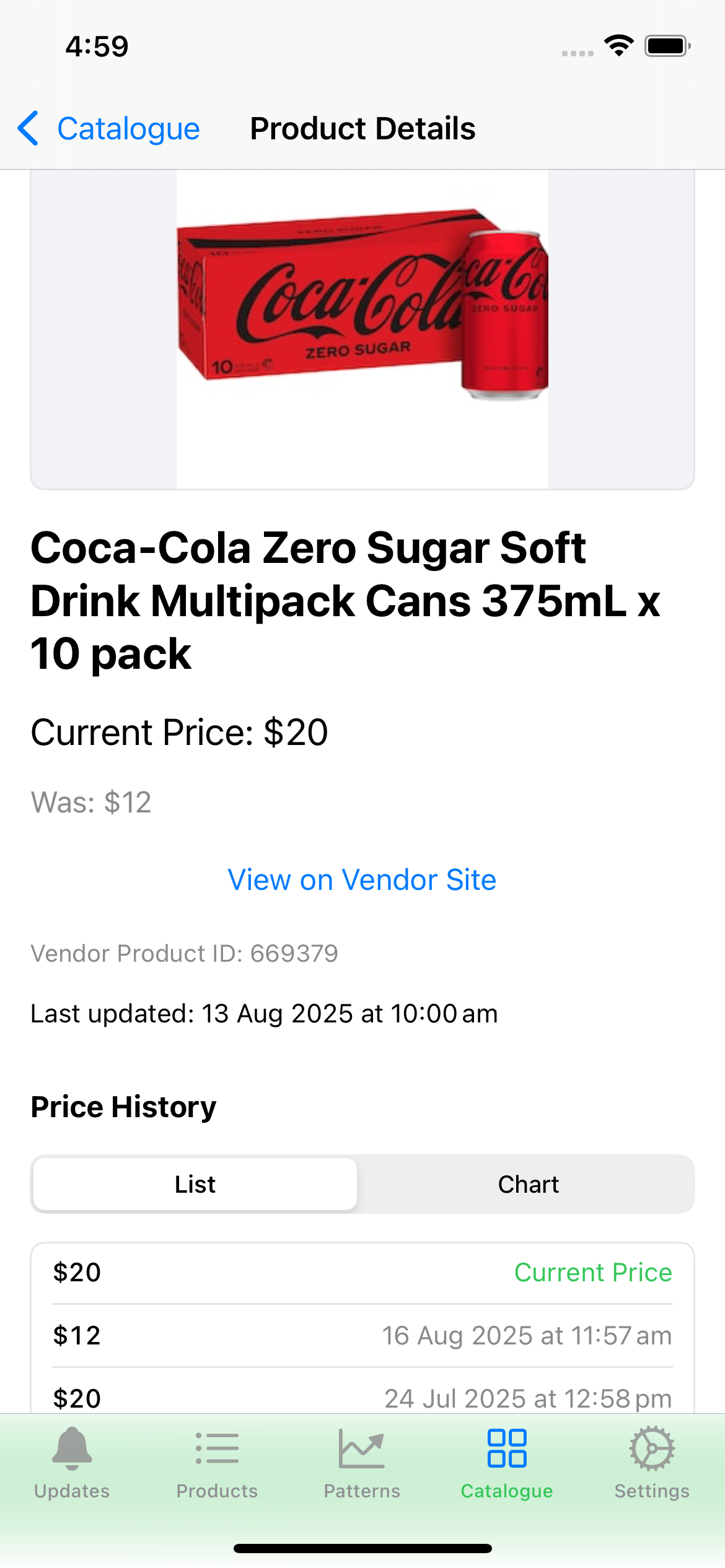
Detailed product information and tracking options
Live Updates Feed
Never Miss a Price Change
The Updates feed keeps every price change front and center so you always know what moved:
Key Highlights
- Unseen Badges: Quickly spot new changes since your last visit
- Change Highlights: See current vs previous price with colour cues
- Quick Actions: Acknowledge, open details, or jump to the store link in one tap
- Auto Refresh: Background service keeps the feed current without manual refresh
Stay Organised
Acknowledge updates as you review them to clear badges and keep your feed focused on the latest changes.
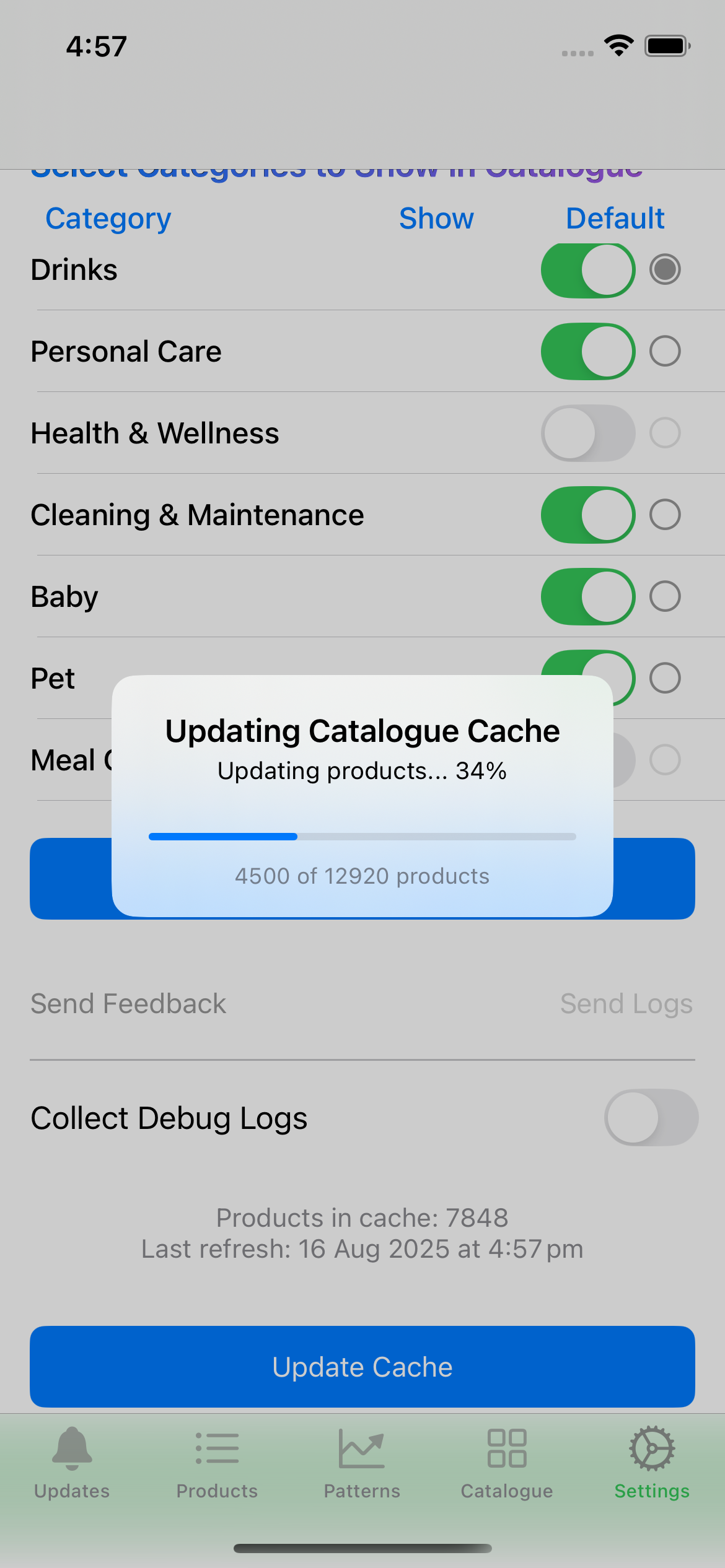
Live updates highlight recent price movements
Watchlist Management
Your Personal Price Tracking Hub
The Updates and My Products tabs show all items you're tracking, with powerful swipe actions for quick management:
Watchlist Features
- All Tracked Items: View every product you follow in one list
- Price Change Alerts: Items with recent price changes are highlighted
- Swipe Actions: Quick gestures for acknowledge and delete actions
- Search Within: Find specific tracked products quickly
Swipe Actions - Quick Management
Mark price changes as "seen" to clear the notification badge. Only appears when there are unseen price changes.
Remove products from your watchlist. This action cannot be undone.
Managing Your Watchlist
- Add Products: From catalog or product detail pages
- Remove Items: Swipe right or use the delete button
- Acknowledge Changes: Swipe left to mark price changes as "seen"
- View Details: Tap any item to see full product information
ℹ️ Efficient Notifications
You'll receive push notifications when prices change on your watchlist items. Use swipe-left to acknowledge changes and keep your notifications organized.
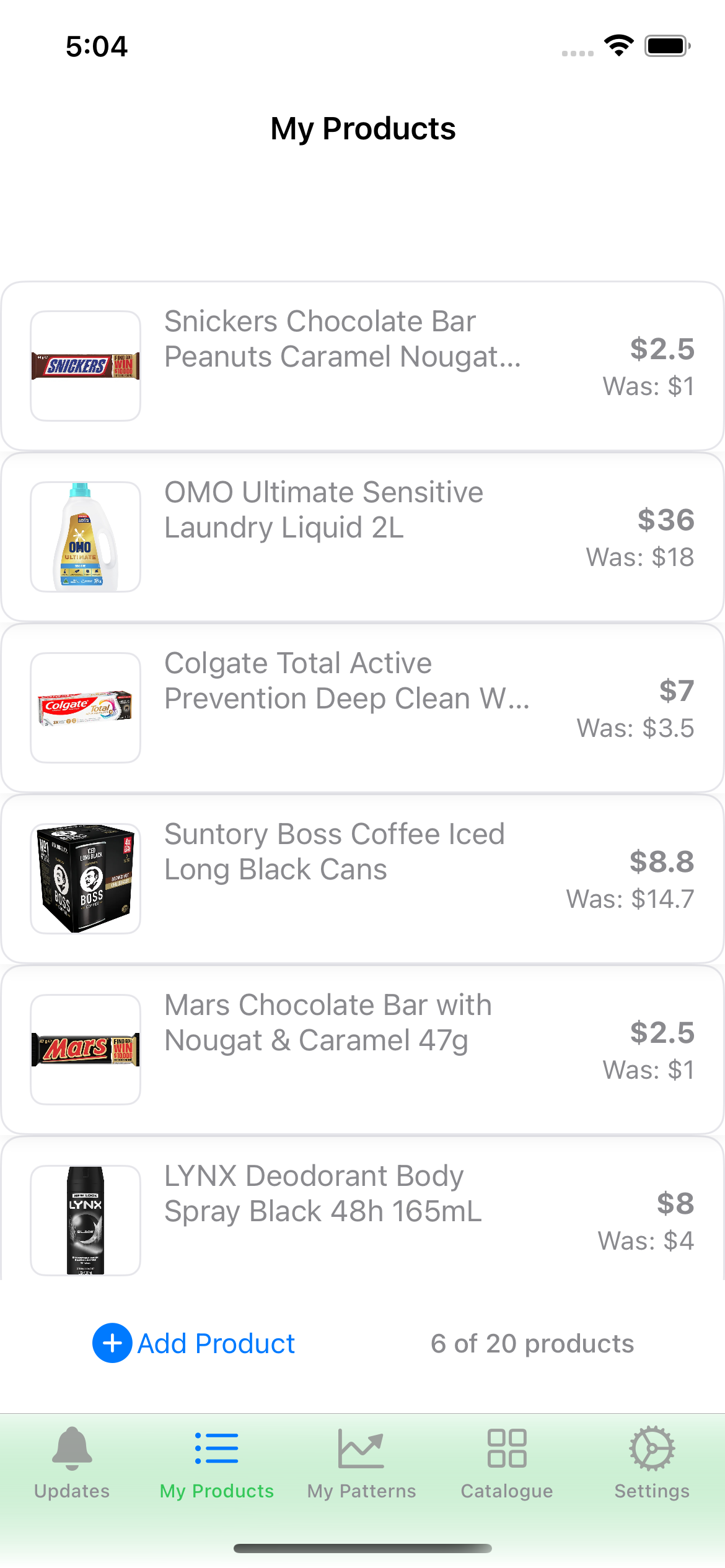
Your personal watchlist with swipe actions for quick management
Price Comparison with Coles
Compare Prices Across Retailers
SmartDeals helps you find the best deals by comparing Woolworths products with similar items from Coles:
How It Works
- Similar Product Matching: Find equivalent products from Coles for any Woolworths item
- Price Comparison: See current prices at both retailers side by side
- Best Deal Identification: Quickly identify which store offers better value
- Smart Recommendations: Get suggestions for alternative products with better prices
Using Similar Products
- View Product Details: Tap any product in the catalog
- Find Similar Products: Tap "Find Similar Products" button
- Compare Prices: Review prices from both Woolworths and Coles
- Make Informed Decisions: Choose the best deal for your budget
💡 Pro Tip
Use similar products to track price trends across both retailers. Sometimes Coles will have a better deal on the same product, or you might find a comparable alternative at a lower price.
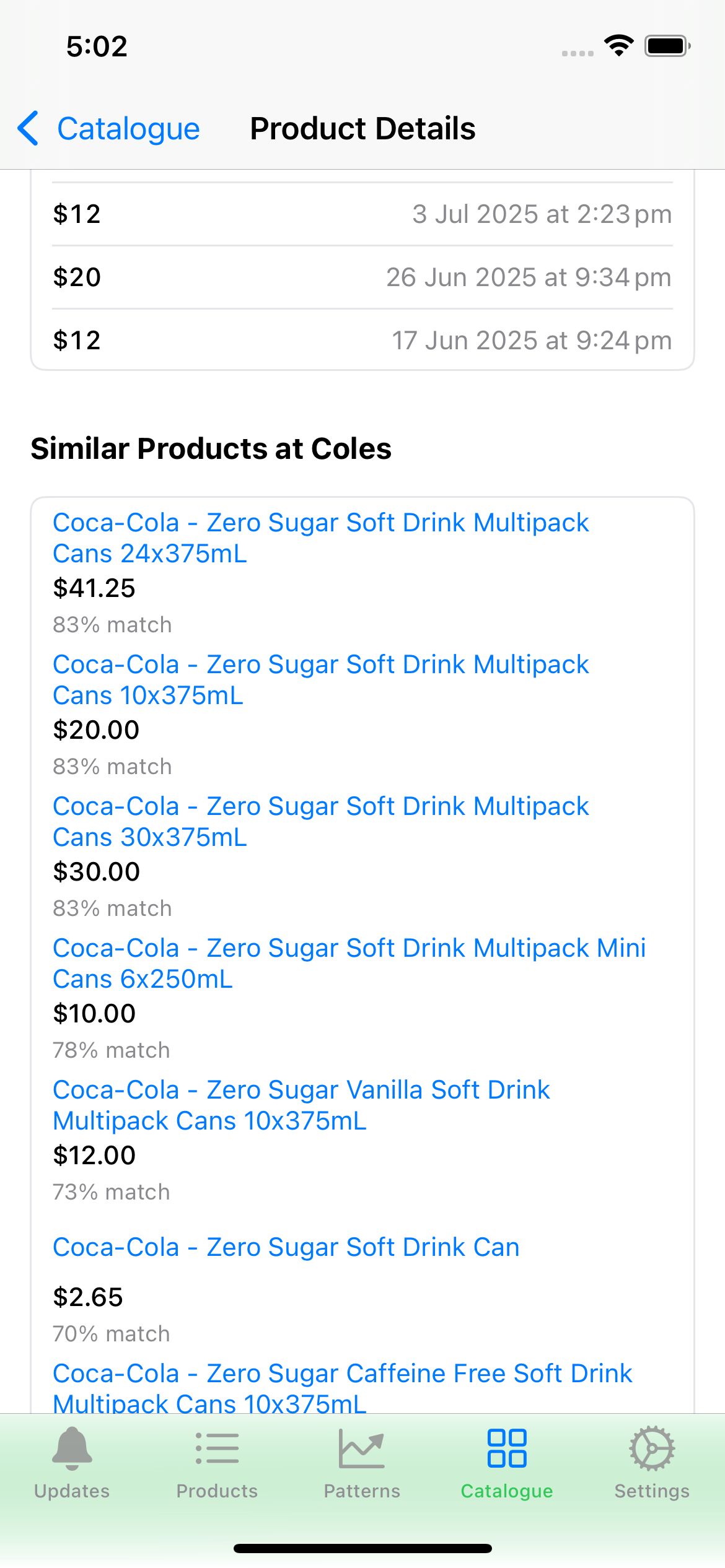
Compare prices between Woolworths and Coles
Price Alerts & Notifications
Stay Informed About Price Changes
SmartDeals keeps you updated with efficient notifications that help you save money:
Types of Notifications
- Price Drops: When tracked products become cheaper (only price drops trigger notifications)
- Threshold-Based: Only price drops meeting your threshold percentage trigger alerts
Important: Price increases do not trigger notifications. The app focuses on helping you save money by alerting you to price drops.
Notification Features
- Efficient Filtering: Only significant price changes trigger notifications
- Grouped Updates: Multiple changes are batched to avoid spam
- Rich Content: Notifications include product images and price details
- Direct Actions: Tap to view product details or acknowledge changes
Notification Settings
Configure your price drop alert threshold in the Settings tab:
- Price Drop Alert Threshold: Set the minimum percentage price drop required to trigger a notification (default is 10%)
- How it works: You'll only receive notifications when a tracked product's price drops by your set percentage or more
- Premium Required: Real-time notifications are only available for Premium subscribers
Note: Make sure notifications are enabled in your iPhone's Settings app (Settings > SmartDeals > Notifications) for the app to send you alerts.
🎉 Maximize Your Savings
Enable notifications and check them regularly. Users who act on price drop notifications within 24 hours save an average of 15% more than those who don't!

Example of price drop notifications
Send Feedback & Track Responses
Help Us Improve SmartDeals
The feedback system allows you to communicate directly with the development team, report issues, suggest improvements, and track responses to your submissions.
How to Access Feedback
- Go to Settings: Tap the gear icon (⚙️) in the bottom navigation
- Tap Send Feedback: Find and tap the "📝 Send Feedback" button
- Feedback Screen Opens: You'll see all your previous feedback and options to add new feedback
Adding New Feedback
- Tap "Add New" Button: Located at the top of the feedback screen
- Enter Your Feedback: Type your message in the text field (multi-line text area)
- Submit or Cancel: Tap "Send" to submit or "Cancel" to discard
- Validation: Empty feedback is not allowed—you'll see a validation message if you try to send empty feedback
What You Can Report
- Bug Reports: Report app crashes, errors, or unexpected behavior
- Feature Suggestions: Suggest new features or improvements
- Price Inaccuracies: Report incorrect or outdated prices
- Product Issues: Report missing products, wrong categories, or incorrect information
- General Comments: Share your thoughts, questions, or concerns
Viewing and Managing Your Feedback
The feedback screen displays all your submitted feedback with clear status indicators:
- View All Feedback: See a complete list of all feedback you've submitted
- Status Display: Each feedback shows its status: "New", "Acknowledged", or other statuses
- Color Coding:
- Black text = New feedback (can be edited or deleted)
- Green text = Acknowledged feedback (read-only)
- Developer Responses: Responses appear below the original message in blue text
Editing and Deleting Feedback
You can manage your feedback based on its status:
- Edit New Feedback: Only feedback with "New" status can be edited
- Select a "New" feedback message from the list
- Tap "Edit" button
- Modify the feedback text
- Tap "Send" to save changes
- Delete New Feedback: Only feedback with "New" status can be deleted
- Select a "New" feedback message from the list
- Tap "Delete" button (red button)
- Confirm deletion in the confirmation dialog
- Warning: Deletion is permanent and cannot be undone
- Acknowledged Feedback: Once feedback is acknowledged, it becomes read-only and cannot be edited or deleted
Understanding Feedback Status
- New: Recently submitted feedback that hasn't been reviewed yet. You can edit or delete it.
- Acknowledged: The development team has reviewed your feedback. It's now read-only.
- Response Available: The development team has replied to your feedback. The response appears in blue text below your original message.
ℹ️ How We Use Your Feedback
All feedback is reviewed by our development team. We use your input to prioritize bug fixes, improve accuracy, and plan new features. When we respond, you'll see our reply in blue text below your original message. Your feedback directly helps us make SmartDeals better for everyone!
💡 Tips for Effective Feedback
- Be Specific: Include product names, prices, or specific details when reporting issues
- Provide Context: Explain what you were trying to do when you encountered a problem
- Check Responses: Regularly check the feedback section to see if we've responded to your submissions (responses appear in blue text)
- Edit Before Acknowledgment: If you need to add more information, edit your feedback while it's still "New" status

Send feedback, track status (New/Acknowledged), and view developer responses
Settings & Preferences
Customize Your SmartDeals Experience
The Settings tab provides comprehensive control over your app experience and preferences:
App Preferences
- Price Drop Alert Threshold: Set percentage threshold for price drop notifications (1-50%, default: 10%)
- Price Check Interval: Configure how frequently the app checks for price updates (default: 5 minutes)
- Show Images in Search: Toggle product image display in search results
- Category Preferences: Set default category and included categories for searches
- Search Results Sorting: Set default sorting (Name A-Z/Z-A, Price Low-High/High-Low, or Relevance)
- Sync Settings: Your preferences sync across all devices
Feedback & Improvement
SmartDeals includes a comprehensive feedback system accessible from Settings:
- Send Feedback: Tap "📝 Send Feedback" to open the feedback screen
- Add New Feedback: Use "Add New" button to submit bug reports, feature suggestions, or general comments
- View All Feedback: See all your submitted feedback with status indicators (New/Acknowledged)
- Edit or Delete: Edit or delete feedback with "New" status (black text)
- View Responses: See developer responses in blue text below acknowledged feedback (green text)
- Track Status: Monitor when your feedback is acknowledged and read responses
For detailed information about the feedback system, see the Send Feedback & Track Responses section.
Debug & Support Tools
- Collect Debug Logs: Enable detailed logging for troubleshooting
- Send Logs: Share debug information with support team
Account Management
- Subscription Management: View and manage your premium subscription
- Sign Out: Log out of your account
- Clear Saved Login: Remove stored credentials
🎉 Help Us Improve
Found incorrect information? Have a feature idea? Use the feedback option in Settings to send your feedback. You can track when it's acknowledged and view responses from our team. Your input directly helps us make SmartDeals better for everyone!
💡 Pro Tip
All product searches are performed in real-time against our remote database, so you always get the most current pricing and product information without any manual updates.

Customize your SmartDeals experience in Settings